How Google Drive Works
Think of Google Drive as a shared filing cabinet that we can both access at any time. Rather than emailing various copies of documents back and forth, we can simply go to our shared folder at any time and get the most recent version of any of our project files.
Be sure to bookmark the link below so you can access it at any time.
Why Use Google Drive
Why I use Google Drive to share your site’s files, rather than email
We’ll need to share various files throughout the creation of your website. This includes text, research, and (most importantly) images. I’ll be using Google Drive to share and get the files needed to make your new website.
The main reason I prefer Google Drive over attaching files by email is that email providers will often resize or compress large files like images and videos. This means that the images shared via email come through at a reduced quality, which will affect how they look on the website. We don’t want that! By sharing files over Google Drive, we can ensure the quality is maintained.
There are other benefits as well.
- We both have instant access to the files as soon as they are saved to Drive
- All your materials will be organized in one folder; no more searching your inbox to find something
- If either of us makes edits to the files, we’ll both have access to the most up-to-date version
- Because email attachments make a new copy, it’s possible to accidentally access an older version. Using Drive there is more clarity on the most recent file
- You can share all your site assets to any other contractors or volunteers with just one link
- Because your shared content is “in the cloud” it’s all safely backed up. If my house burns down or my laptop is whisked away by the fairies who steal socks from the dryer, your site materials will be safe
What to Share
Drive is especially critical for large files like images and videos
Using the Drive link in this document, share with me the images and videos you want to put on your new website. Please provide the originals whenever possible, as often images are compressed when reshared (e.g. if you took the image from your phone but emailed it to a friend, share the version on your phone).
- photos of you
- photos that you feel capture your brand. e.g.
- the city you live in
- your desk area or workspace
- your pets
- stock photos that you’ve used for your brand
- any existing branding materials such as letterheads or business cards
- photos or videos that show demonstrate your experience and skills
- photos that capture a concept on one of your pages (e.g. a compass photo for Contact page)
Even the photos I don’t use will give me a sense of your brand. I may alter the color or crop.
Keep it Legal! I’m presuming you have ownership or permission for any images you share. If you have useful photos with unclear copyright, you can still share them. Just put them in a separate folder so it’s clearly marked. e.g. Inspiration – unknown source. I’ve taken the liberty of creating this folder for you.
As you give me photos, I’ll be sourcing stock photos to consider for the site.
- don’t buy stock photos. I handle that.
- I save the photographer’s name at the end of the file.
Accessing the folder
How to find our shared Google Drive folder
- I emailed you the link.
- go to drive.google.com and find your folder under Shared with Me (detailed instructions with screenshot in Troubleshooting section below).
- I recommend adding a star to the folder as well so it is easily found under favorites.
How to Share your Pics
Now that you have the shared folder, you can upload any images or other assets you want to use on the site here and I will have access to them within seconds. You don’t have to email them to me, but it might be good to message me and let me know if you are aware I’m waiting for them.
There are two ways to share your uploads. Make sure you are in the shared folder, not your private folder (drive.google.com). See Troubleshooting below if you are unclear on this distinction.
- Open the folder with your items on your PC, select as many as you’d like, and drag the selection into the page for our shared folder.
- Click the “New” button in the navigation on the left, and choose “File Upload” from the drop down.
If you have the shared folder open, that’s what where your uploads will go. If they got put in your main drive (or any other unshared folder), see Troubleshooting below.
I may organize the content into sub-folders. So long as all the sub-folders are inside the main shared folder, we should both have access to everything shared there.
Google Drive Software
Syncing your files to your local computer (optional)
If you have the Google Drive software installed on your PC, your Drive folders will be synced. However, the folders that have been shared with you by someone else aren’t in your Drive. If you want everything to be synced automatically, you can add a shortcut:
- Go to Shared with Me in Drive.Google.com
- Right-click on the folder I made for you. In the menu that pops up:
- Select Organize.
- Select Add shortcut.
- A menu will pop up for you to decide where in My Drive to put the folder. From there you can click on My Drive or go to the All Locations tab to put it in a subfolder.
Troubleshooting
If you are new to cloud sharing with Google Drive, the following will go into detail and cover some common pitfalls I often run into with clients.
You Cant Access the Folder
Common issues accessing the shared Google Drive folder
If you attempt to open the folder and it says you don’t have permission, either:
- you’re logged into the wrong account
- you don’t have a Google account
- I failed to share the folder with you before I sent it
1. If you have more than one Google Account
Make sure that you’re logged into the same Google account that I shared with you. You can see which account you’re logged into at the top right of any webpage that is in the Google ecosystem.
If you’ve already been communicating with me via Gmail than I may assume that’s your preferred account. If there is another Google account you prefer to use let me know so I can share it with that as well.
2. You don’t have a Google account
To Use Drive, You Need a Free Google Account
To access your shared content, you need a free Google account. Most people already have one! If you have an account with any of these programs, you already use a google account:
- Gmail
- YouTube (owned by Google)
- Google Docs
- Google Sheets
- An Android phone
- Google Meet / Hangouts
- Google Calendar
- Google Photos
- Google News
- Google Analytics
- Google Ads
If you don’t already have a Google account, when you go to drive.google.com you can get one easily by clicking on the link that says “Sign up at no cost.” Your free Google account can be used with any of the services above and many more as well. You’ll also want a Google account to use Google Analytics, which I can setup so we can gather info on where your internet traffic is coming from and which of your site’s content is most popular with your audience.
3. I Failed to Give You Permission
If you are sure that you are using the account you want linked to Drive and it still isn’t allowing access, it may be that I failed to grant you permission! You can use the “request access” button on the page or email me and let me know.
You Can’t Find Shared Folder
I advise bookmarking the link I sent you for our shared Drive folder with your browser. But if you have lost track of it, you can always get there by going to drive.google.com and logging into the Google account I shared your files with. Once you are logged into the correct account, you can find the folder on the left under Shared with Me.
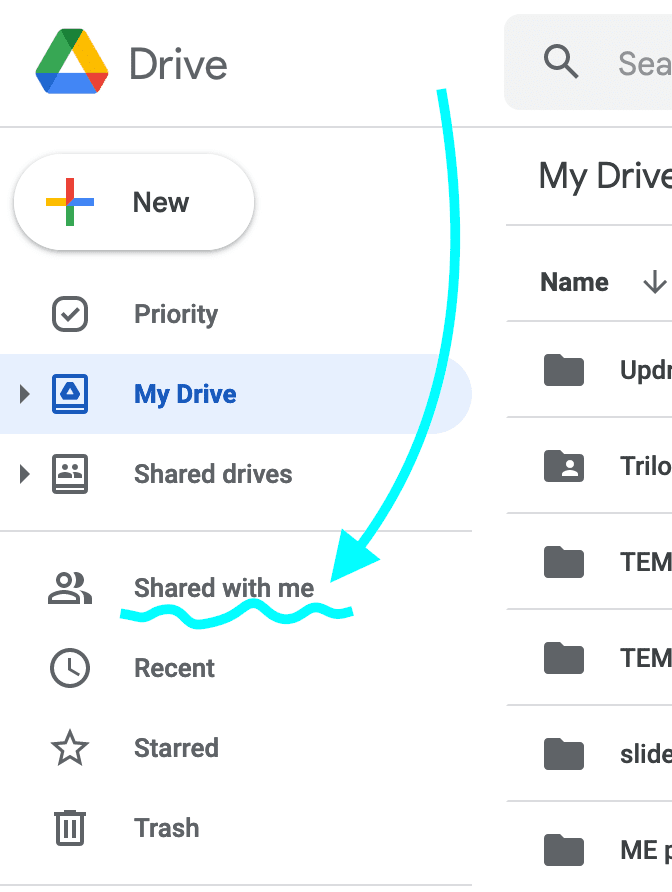
Find it in “Shared with me”
You can easily find our shared folder in the “shared with me folder,” especially if you don’t have many shared files there already.
If it’s not there, either you are logged into a different account, I didn’t share it, or you have many things shared with you. If the latter, try sorting by date or name.
Star your folder to find it easily
Go to the shared folder. You will know you are there because you will see the name at the top of the page. For example, here the folder I am in is called “Slideshows.” To avoid confusion with your main drive (which is often your name), I’ve started including “Future Is Fiction Communications” in the file name.
You can star the folder so it can easily be found under “Starred,” another option just below “Shared with me.” To star the folder, double click on it to open it.
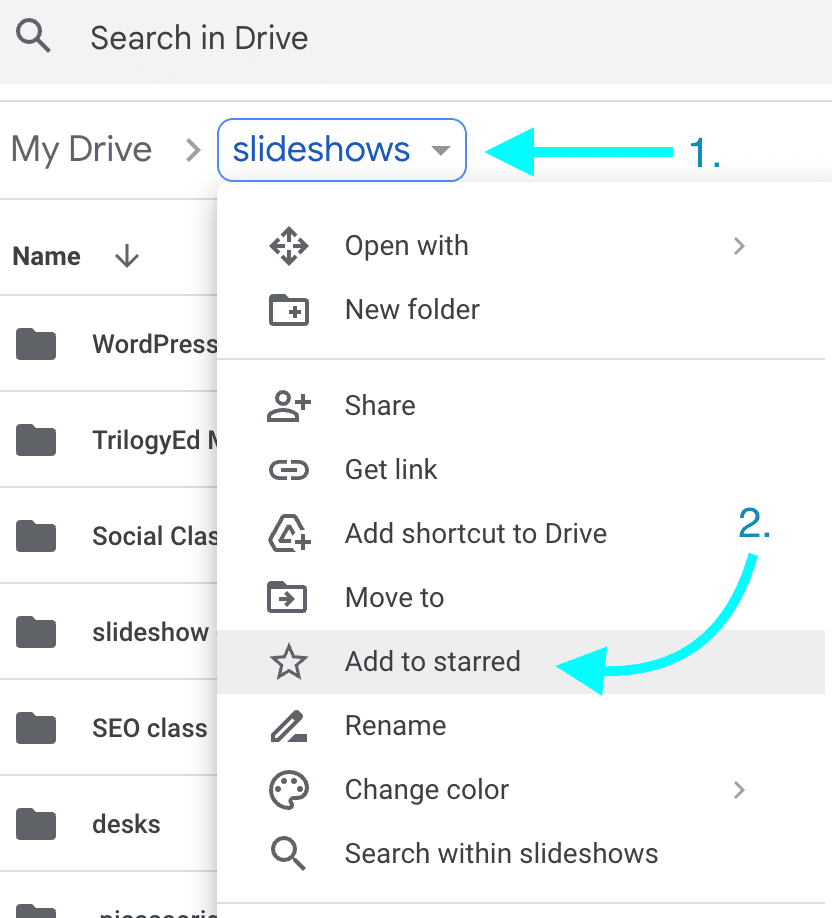
You can also find our shared folder by
- using the search box at the top of Drive.google.com
- Bookmarking it in your browser
- Sorting by name or date
You Uploaded It, but Karma Still Can’t See It!
If you dragged the elements into Drive (or uploaded them by clicking New) but the person you shared with still can’t see them, it’s likely that they were not put into the shared folder. Remember that with your account you have a whole drive to save stuff in, and it is only the stuff uploaded to our shared folder that we have shared access to! So if you were not in the shared folder when you uploaded, then Google will naturally assume that is content you are saving privately to your drive, not necessarily to be shared with anyone.
How to be Sure You’re in the Correct Folder
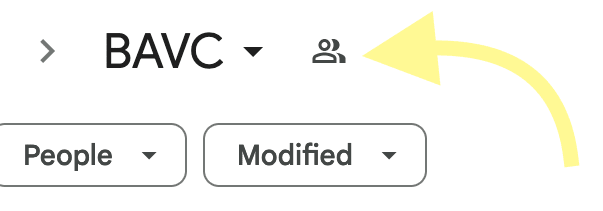
Note that the name of our shared folder will be shown under the Google Search bar. It will NOT say “My Drive,” nor will it only say “Shared with Me.” It will say:
Shared with Me > [The Name of Our Shared Folder]. There will be person-shaped icons to indicate that the file is shared, and clicking on them will show you who it’s shared with. Like so:
If you click on the Drive link I sent you, it should take you straight to your shared folder.
How to Move Your Files
If the files you want to share are already uploaded to drive, you don’t need to upload them again. You can move them.
- To do this, you have the shared folder bookmarked in your drive. There are instructions for this on page one of this document.
- Go to where the files you want to share are located (if you’re not sure, you can search for them or try the main page on drive.google.com).
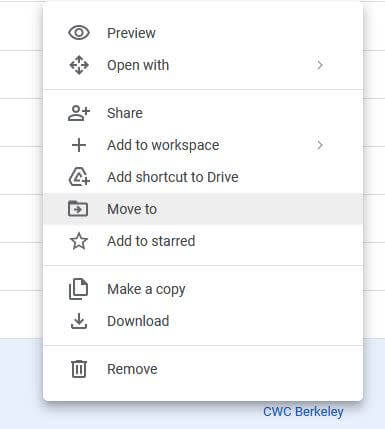
- Select all of the files you want to share by holding down the CONTROL key (or COMMAND on Mac) as you click on each one. Then right-click with your mouse on the selection (or if you’re on Mac, the CONTROL key with a regular mouse click). That will open up the menu pictured on the right.
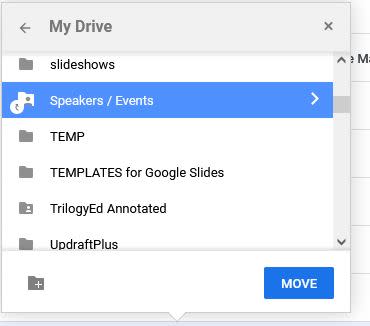
- Select “Move to.” The previous menu will then show your files in your drive, including the shortcut for our shared folder. (If our shared folder isn’t listed, then you didn’t bookmark it, as in step 1).
- Click on our shared folder in this menu and all your items will be moved to the shared folder. This will highlight the folder in blue.
- Click on the blue MOVE button and you’re done!
You may want to go to the shared folder for reassurance that you successfully completed your mission.
Note when a folder is bookmarked locally in your drive it will have that little arrow next to it, just like in Windows/Mac.
If you have any questions about Google Drive, don’t hesitate to reach out!
As I’m working on your project, all of the graphic designs I create will be saved into this shared folder. That way you don’t have to wait for me to send you updated images. Everything I make for you will accessible to you immediately, at any time.